
Understand your photos.
Before you edit.
Right-click a photo to explore its camera settings, color and light in one clear view. Compare shots, choose your keepers, and sync your selections with your editor.
Available for Windows and macOS. Get it for macOS.
A closer look. Just a right-click away.
Open a photo in Scout to review its capture settings, camera, lens and image details without launching your editor.
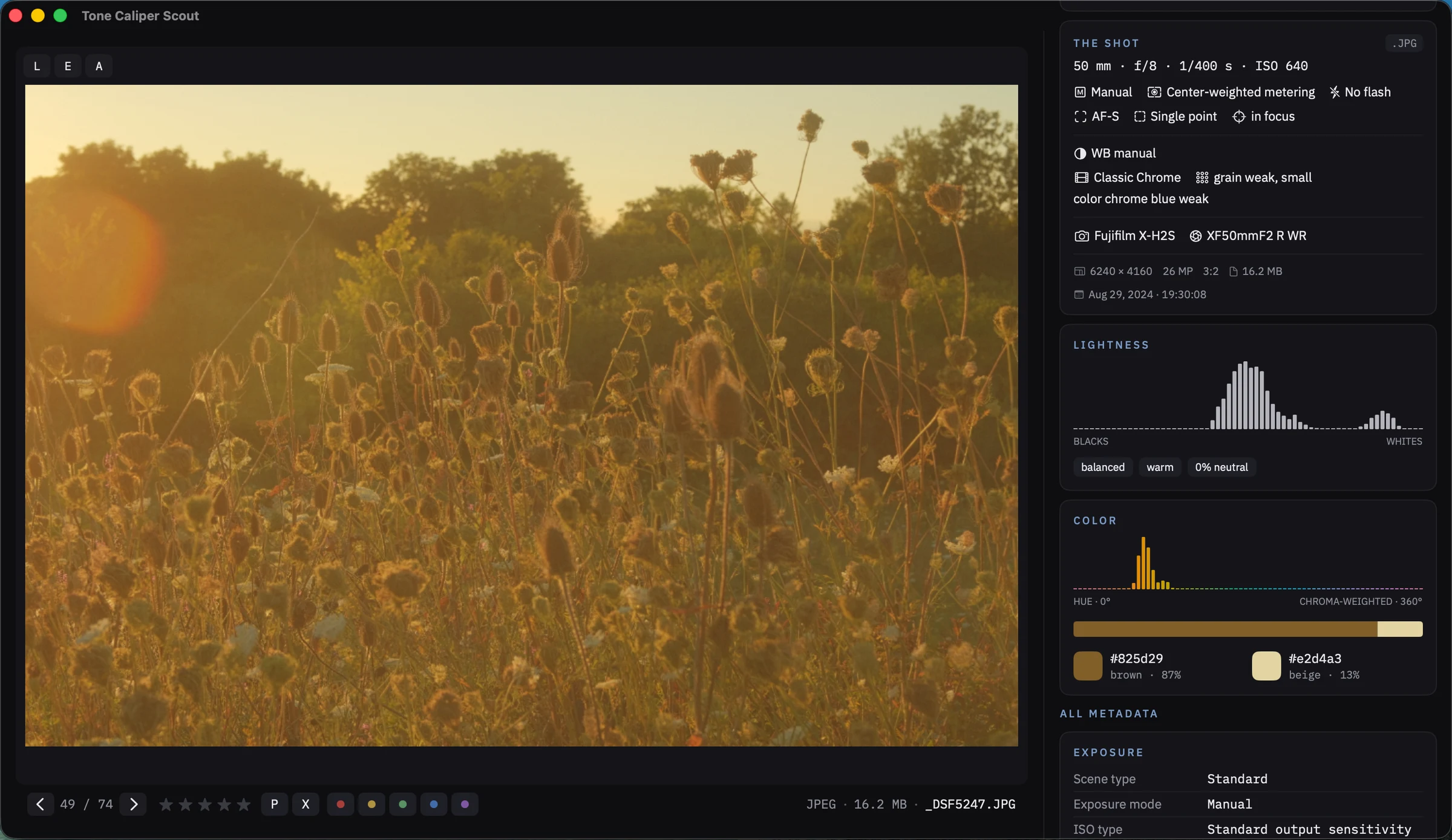
Your photo’s details, brought into focus.
Explore color distribution, lightness and chroma alongside clearly organized shooting information.
For supported Fujifilm files, inspect the film simulation and recipe settings behind the image.
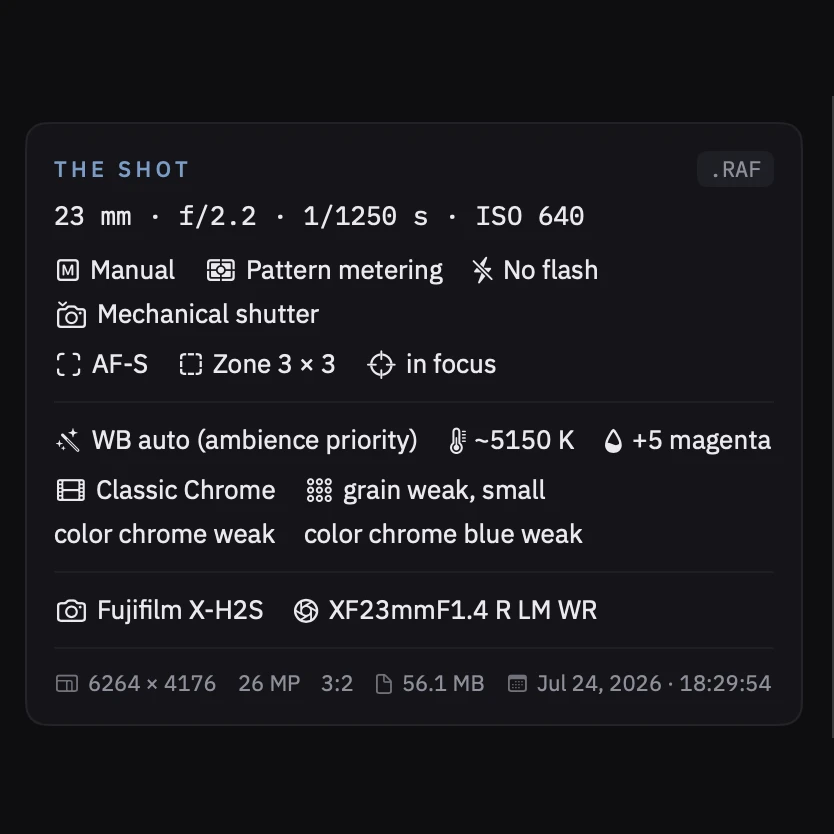
The shot
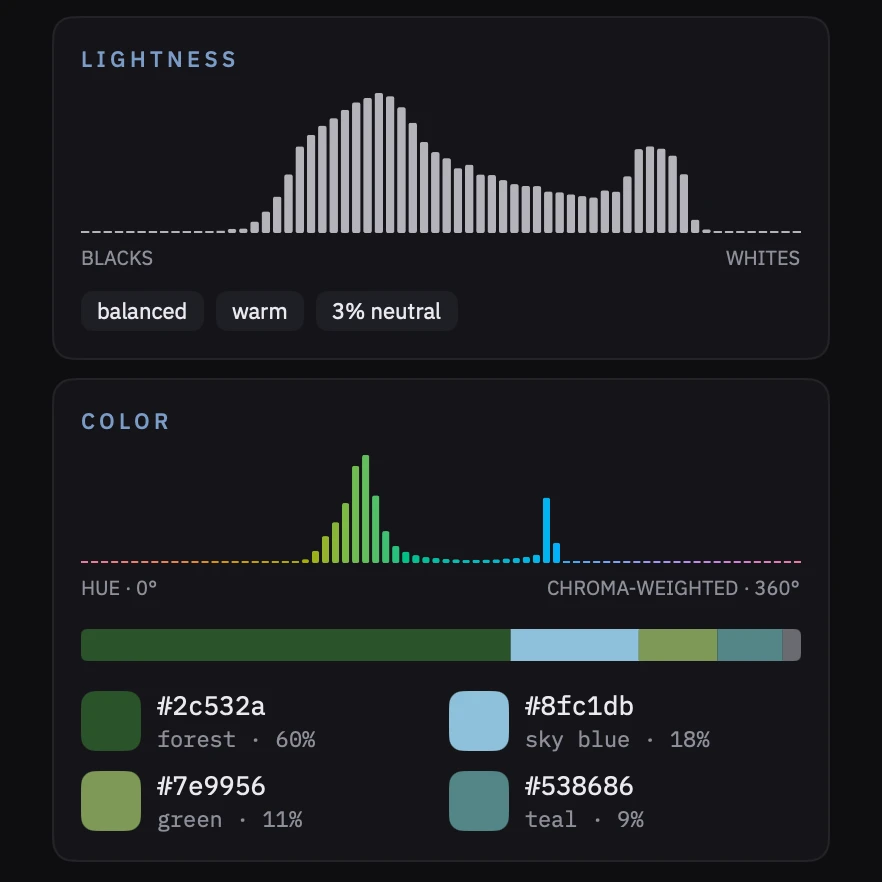
Lightness and color
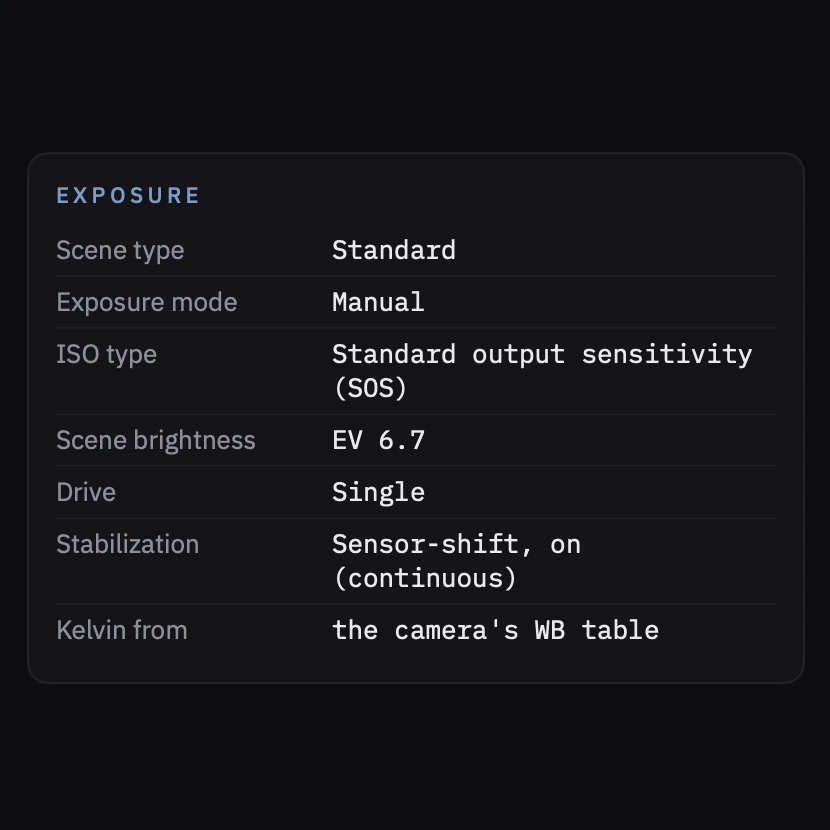
Exposure
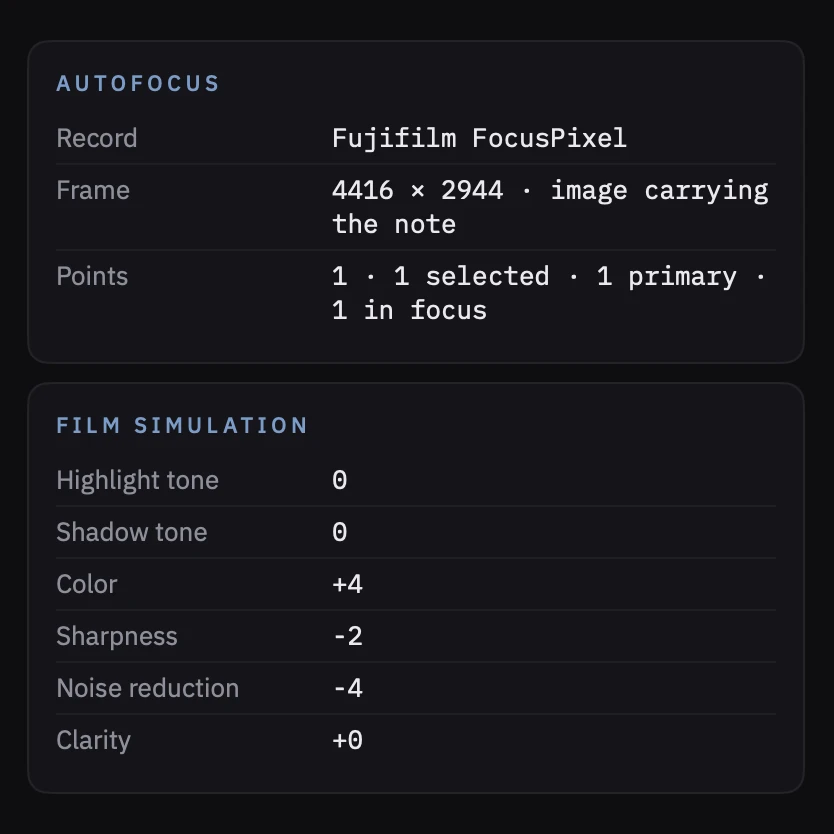
Autofocus and film simulation
Find the differences. Choose your favorites.
Press C to compare photos and their shooting information side by side. Keep moving through the folder as you review the shoot.
Choose your keepers before you open your editor.
Pick, reject, rate and color-label photos directly in your folders, then carry those decisions into your editing workflow.
Verdicts are saved as standard XMP sidecars, so Capture One, darktable, DxO and Bridge see them at once. Lightroom Classic gets a small plugin, and Tone Caliper’s library reads them directly.
See where your camera focused.
View recorded focus points and subject-detection boxes on supported files.
Scout displays focus points and subject boxes saved by your camera in the photo’s metadata. Available on supported files, with support expanding to more cameras over time.
Give your photos a closer look.
Inspect, compare and choose your keepers—right from your folders.
Try the full app free for 7 days. Then $10€10£10, paid once.
Also available for macOS.
Past the trial? Buy a Scout license for $10€10£10.
Good edits start with good picks.
Tone Caliper Scout
Inspect, compare and choose your keepers, right from your folders.
One-time purchase. No subscription.
- Photo metadata, clearly organized
- Color wheel and lightness & chroma histograms
- Side-by-side photo comparison
- Star ratings, color labels and pick/reject flags
- Lightroom plugin and XMP support
- Windows and macOS
Try the full app free for 7 days.
Questions
Do I need Tone Caliper to use Scout?
No. Scout is a standalone app with its own license, sold separately from Tone Caliper. You don’t need one to use the other.
Is Scout available for Windows and Mac?
Yes. Scout is available for both Windows and macOS.
Which editors can read my ratings and labels?
Scout works with Lightroom through the Scout Lightroom plugin, and with Capture One and other editors that support XMP metadata. Support for star ratings, color labels and pick/reject flags varies by editor.
Do I need to import my photos into Scout?
No. Scout works directly with the photos in your folders. Right-click a photo or folder to open it in Scout, then browse, compare and make your selections.
Can I compare photos side by side?
Yes. Press C to enter compare mode. View two photos alongside their information, or use the compact layout to compare up to four photos’ information at once. Keep navigating through your folder without leaving compare mode.
What information can Scout show me?
Scout organizes camera settings, lens details and other recorded metadata into an easy-to-scan view, alongside color distribution and lightness and chroma histograms. Supported Fujifilm files can also reveal film simulation and recipe settings.
Can Scout show where my camera focused?
On supported files, Scout can display recorded focus points and subject-detection boxes, including faces and bodies. Availability depends on the camera and the information saved in the file.