 Tone Caliper
Pin panel: range, feather, and variance
Fine-tune a pin's selection, choose how it shifts colors, and preview the colors it affects.
Open the Pin panel
Select a pin, then click Range, feather and variance in the pin toolbar at the top right of the wheel.
The panel follows your selection: select another pin to adjust its settings. When no pin is selected, the controls are inactive.
Like other panels, the Pin panel can dock above the wheel or float over the photo. See The Editor for details.
Read the plot
The plot shows the colors affected by the selected pin. Hue runs horizontally, relative to the pin's hue at 0°. Lightness runs vertically, from 0 to 100.
If the pin is restricted to a lightness range, the area outside that range is shaded. The plot updates as you move the pin or adjust its settings.
Choose a mode
Mode determines how moving the pin changes the affected colors. In both modes, the pin's own color moves to the position you drag it to.
- Offset moves the affected colors together on the wheel and can add a tint to grays. This is the default for new pins.
- Rotate rotates the affected hues and scales their saturation, keeping grays neutral.
Use Offset to tint neutrals or correct a color cast in near-neutral areas. Use Rotate to shift colors while preserving nearby neutrals. Each pin has its own mode.
Near-neutral pins: If the pin itself is placed on a near-neutral color, it uses Offset behavior even when Rotate is selected. Neutral gray has no hue to rotate. The panel displays a note when this happens.
Adjust range, feather, and variance
Use the sliders, or scroll over the pin on the wheel with these shortcuts:
| Control | What it does | Shortcut |
|---|---|---|
| Range | Sets how far the selection extends from the pin's color. | Scroll |
| Feather | Sets how gradually the effect fades at the selection's edge. | Shift+scroll |
| Variance | Brings affected hues closer together or spreads them apart. | Alt+scroll |
Click a slider's value to enter an exact number. Double-click the slider to reset it. For a brief explanation of each control, use the help button in the panel header.
Feather also limits Variance. With low Feather, the full Variance range is unavailable. The dimmed ends of the Variance slider show the values you can't currently reach. Increase Feather to make more of the range available.
Bring hues together or spread them apart
Variance changes how closely the affected hues cluster around the pin's hue. It affects hue only.
- Negative values bring hues closer together for a more uniform color. Useful for evening out hue differences in skin tones.
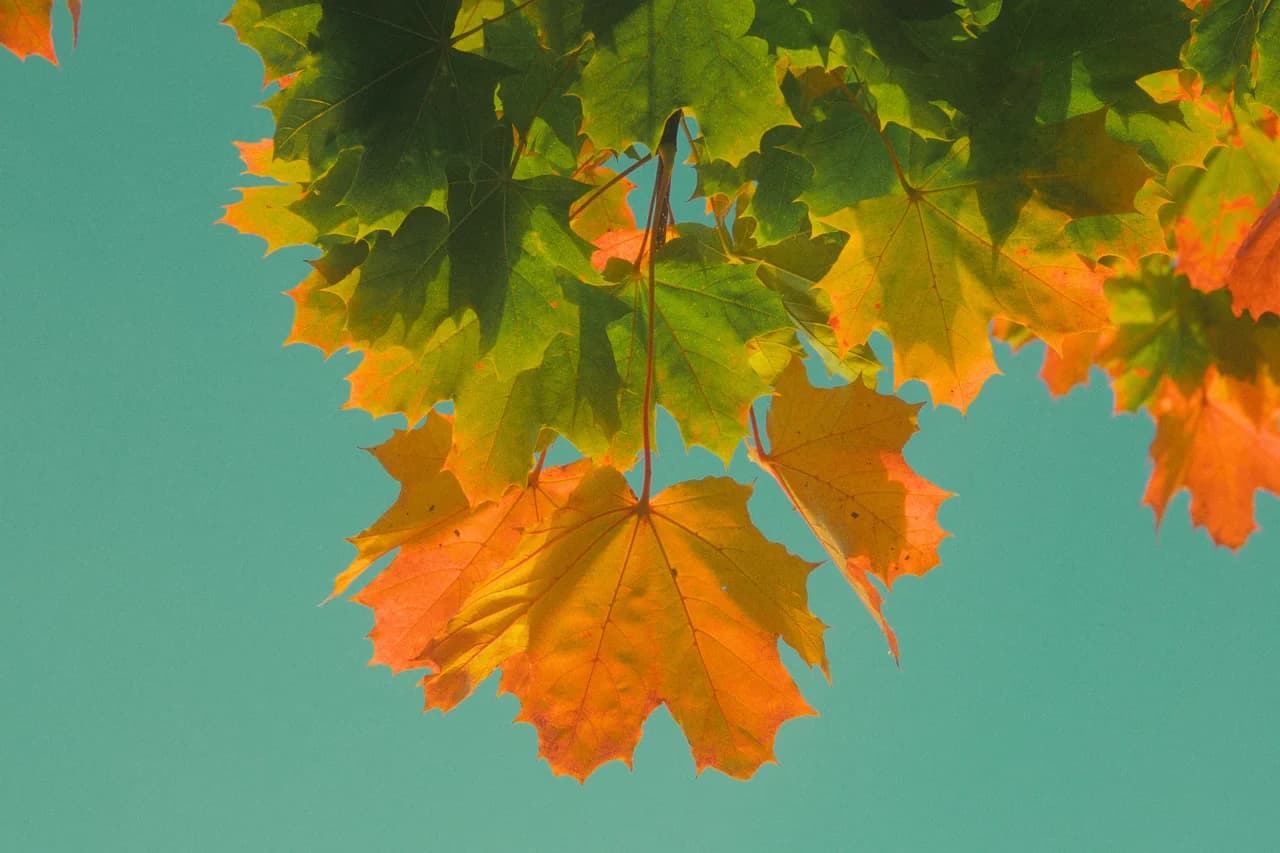
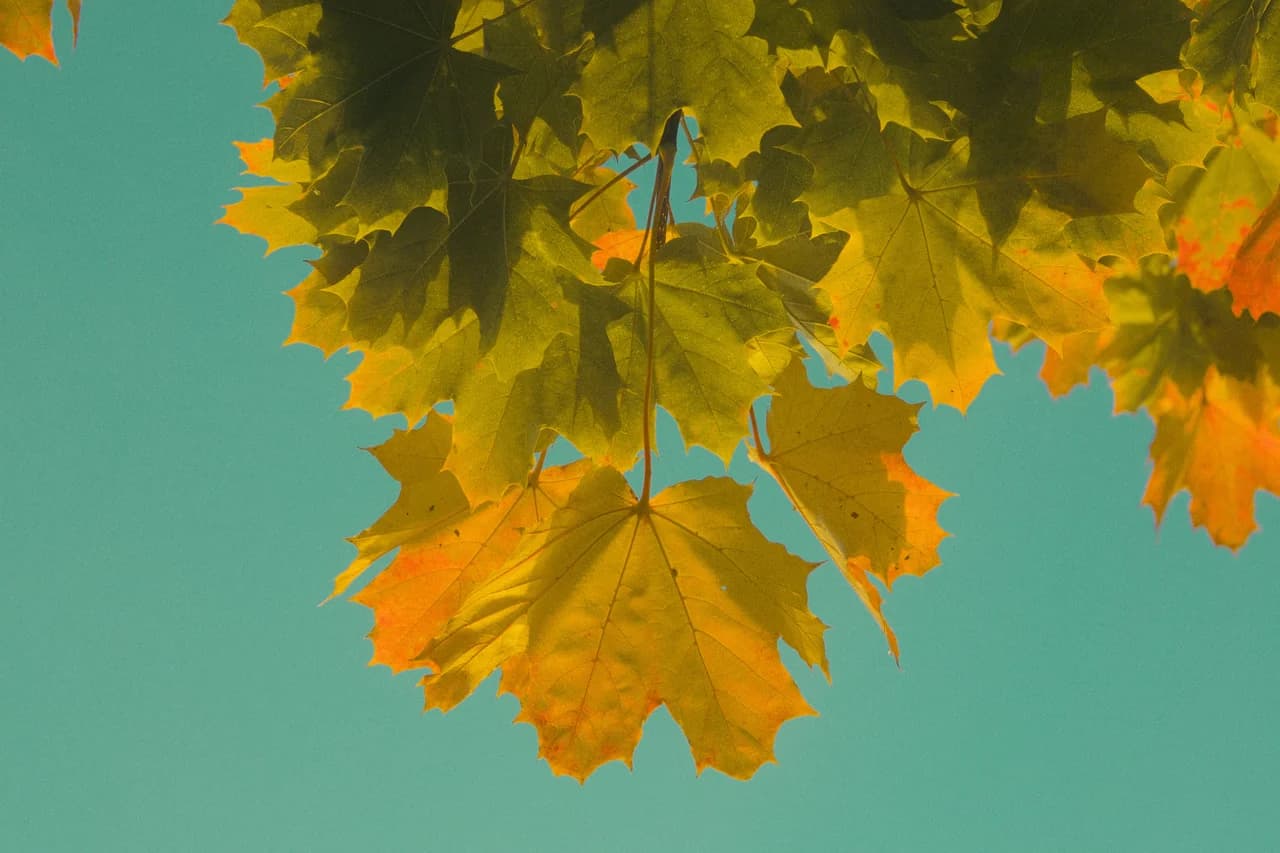
- Positive values spread hues apart, making colors more distinct while preserving their relative order. Useful for separating the yellows, oranges, and greens in autumn foliage for a more vibrant look.
Arrows on the pin point inward for negative values and outward for positive values. The pin's label shows the current amount.
Preview without the pin's effect
Press and hold the eye icon in the panel header to temporarily hide the selected pin's effect. Release it to restore the effect.
Troubleshooting
I can't reach the full Variance range.
The current Feather setting limits the available range. Increase Feather to allow stronger Variance adjustments.
Grays are picking up a tint.
Offset can tint nearby neutrals. Switch to Rotate to keep them neutral.
Rotate is still tinting neutrals.
Check whether the pin itself is on a near-neutral color. These pins use Offset behavior, and the panel displays a note to explain why.
Try this with your own photo — Tone Caliper is a free trial on Windows and macOS.
Download free trial